Native Plugins🔗
Depending on your vserion of VST Live, it may include native plugins one of more these formats:
- VST3 Effect
- VST3 Instrument
- VST Live MIDI
- VST Live DMX
VST3 Effects🔗
VST Live includes a collection of high-quality VST3 effects that can be used on any audio channel. These plug-ins cover a wide range of mixing, mastering, and creative sound-design tasks—from classic dynamics and modulation processing to guitar amp simulations, delays, and reverbs. All built-in effects are fully integrated into VST Live’s audio engine and are optimized for low-latency performance, making them suitable for both studio work and live use. The following section provides an overview of every available effect.
All Built-in Plug-Ins
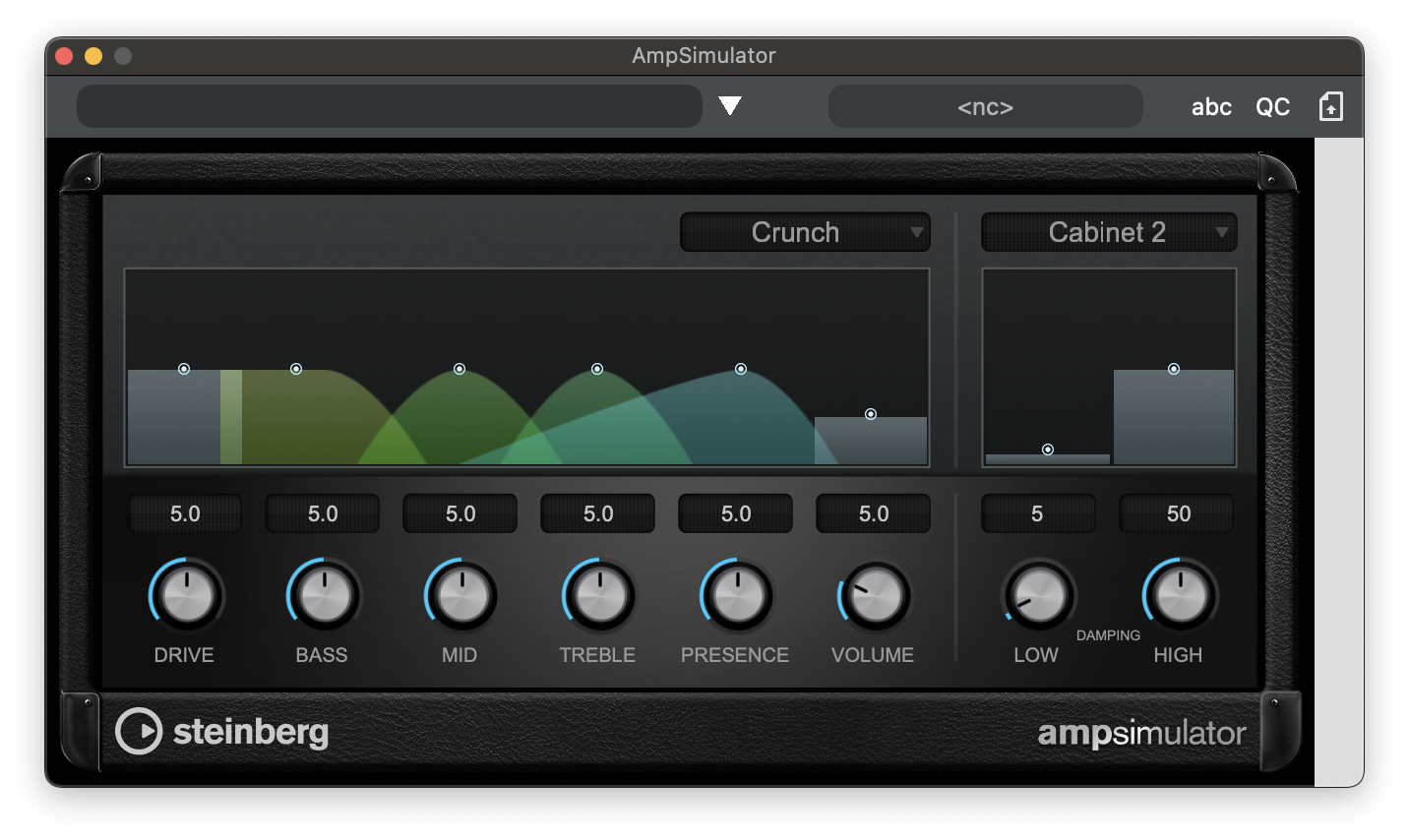
AmpSimulator
AmpSimulator is a distortion effect that emulates the sound of various types of guitar amp and speaker cabinet combinations. A wide selection of amp and cabinet models is available.
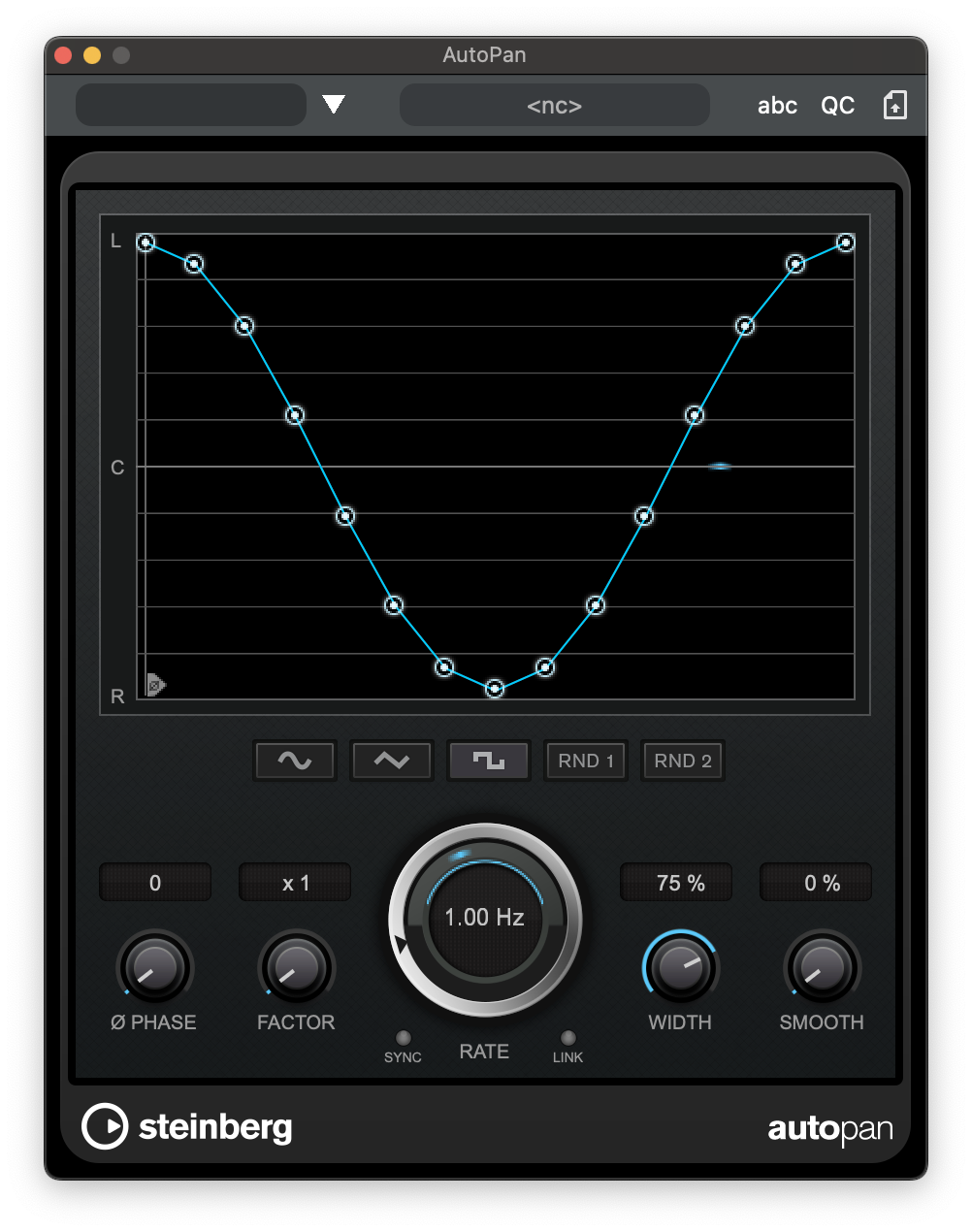
AutoPan
This auto-pan effect provides several parameters to modulate the left/right stereo position. You can use presets or create individual curves for the modulation waveform. AutoPan also allows for chopping effects by linking the modulation of left and right channel.
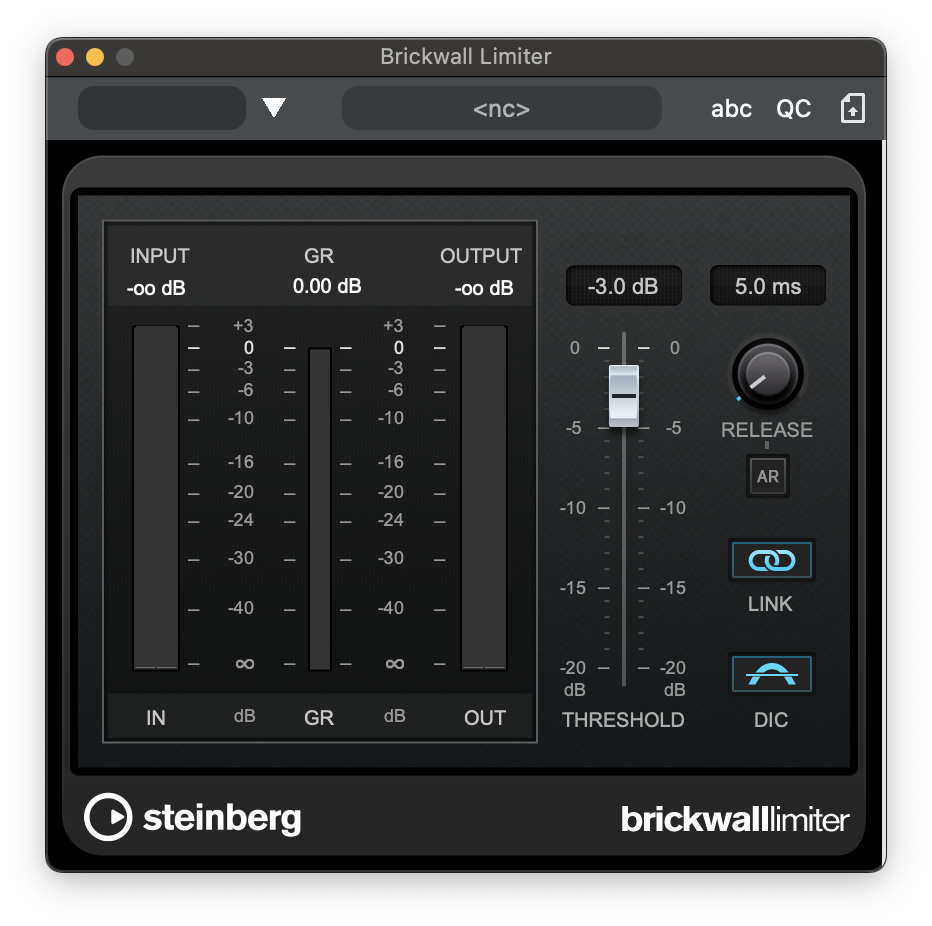
Brickwill Limiter
Brickwall Limiter ensures that the output level never exceeds a set limit..
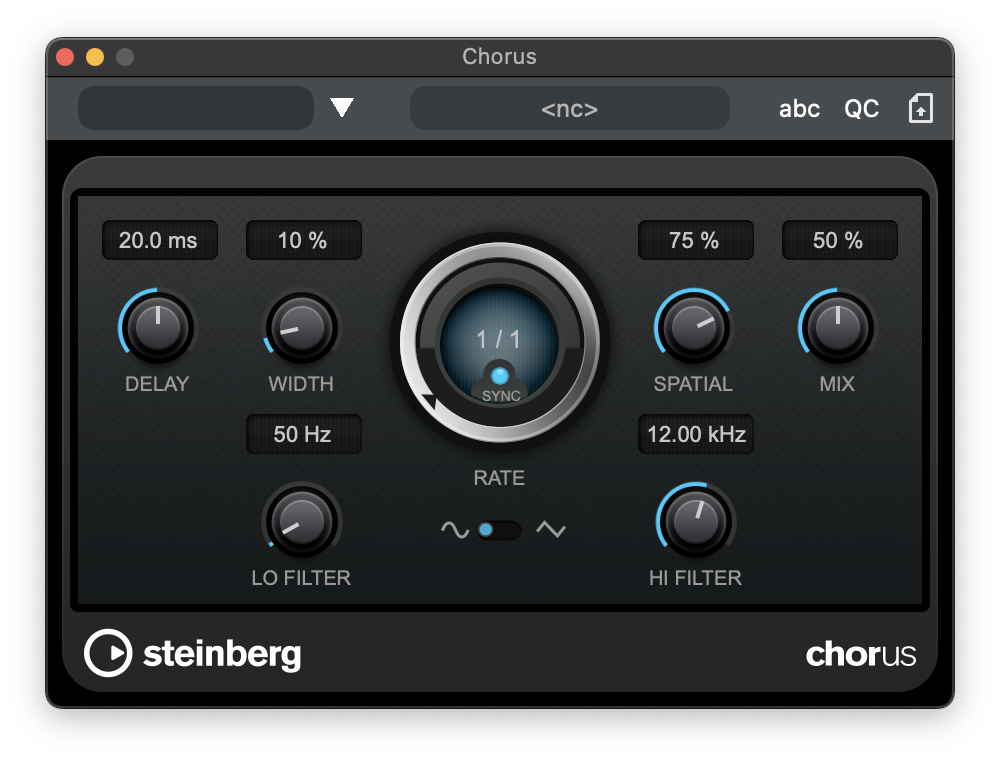
Chorus
This plug-in is a single-stage chorus effect. It doubles the audio that is sent into it with a slightly detuned version.
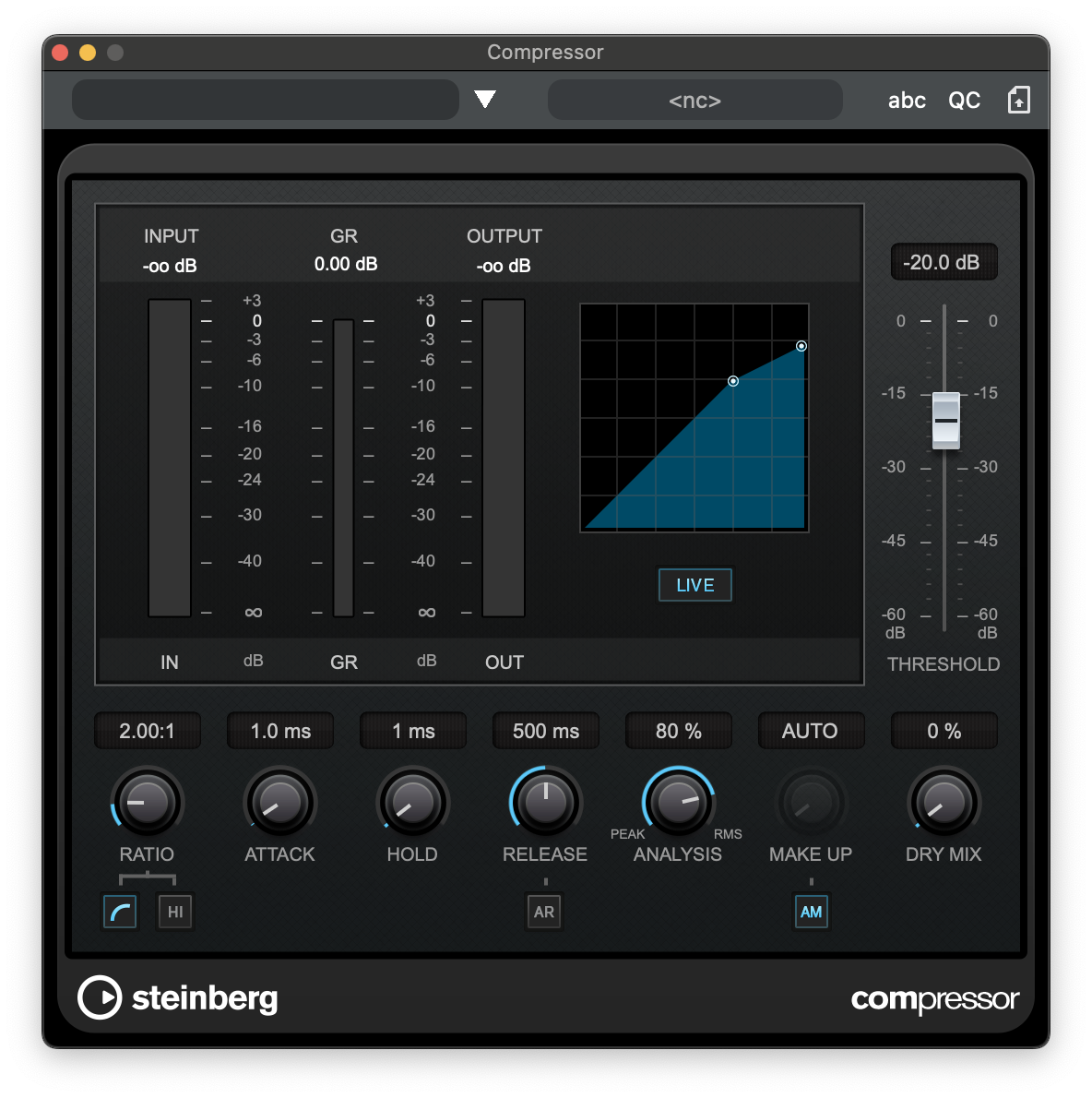
Compressor
Compressor reduces the dynamic range of the audio, making softer sounds louder or louder sounds softer, or both.
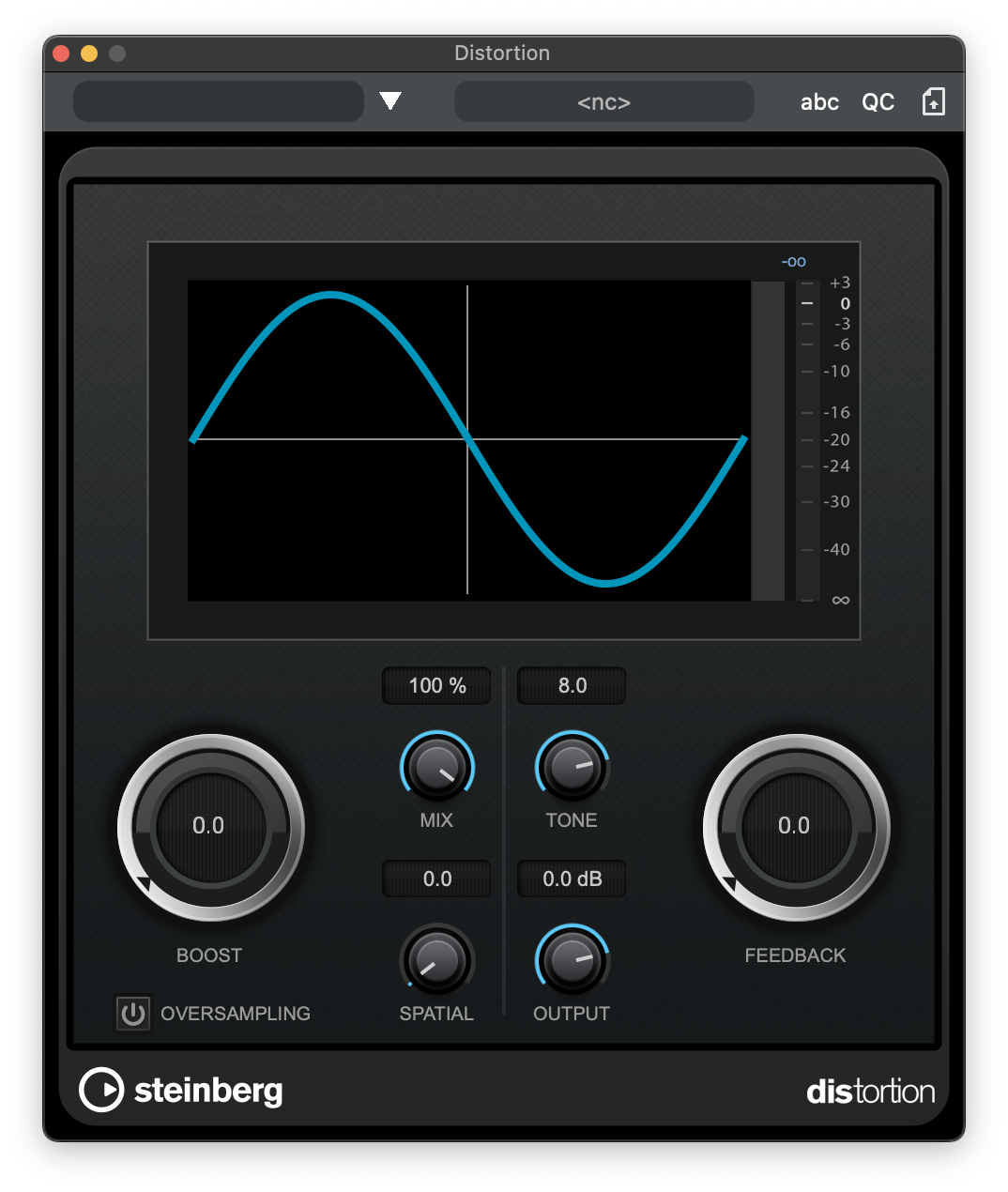
Distortion
Distortion adds crunch to your sound.
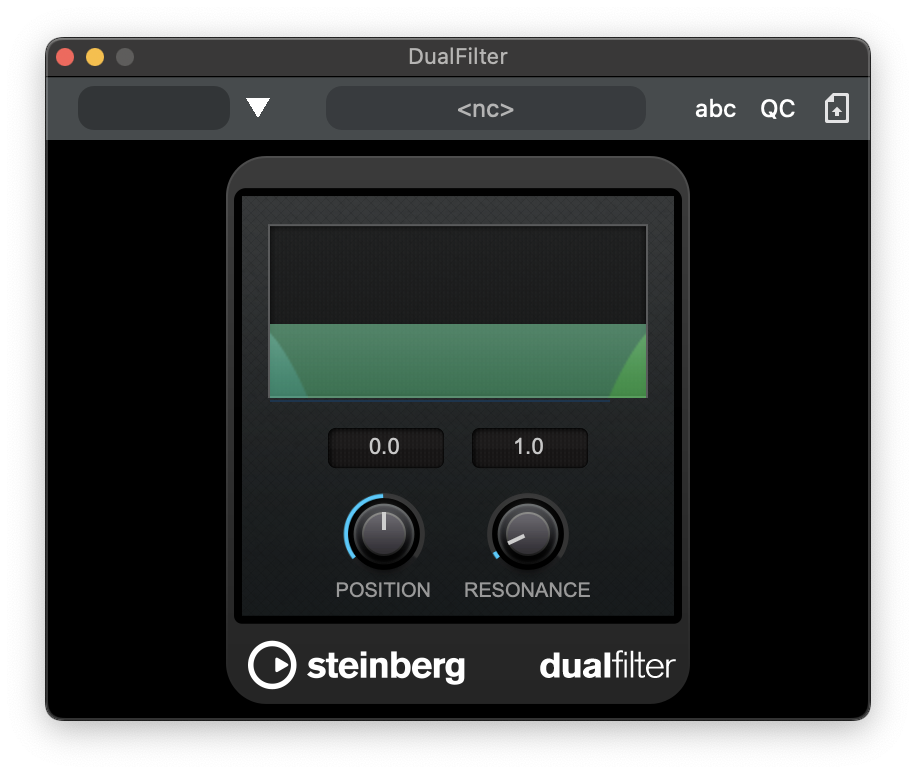
DualFilter
DualFilter filters out specific frequencies while allowing others to pass through.
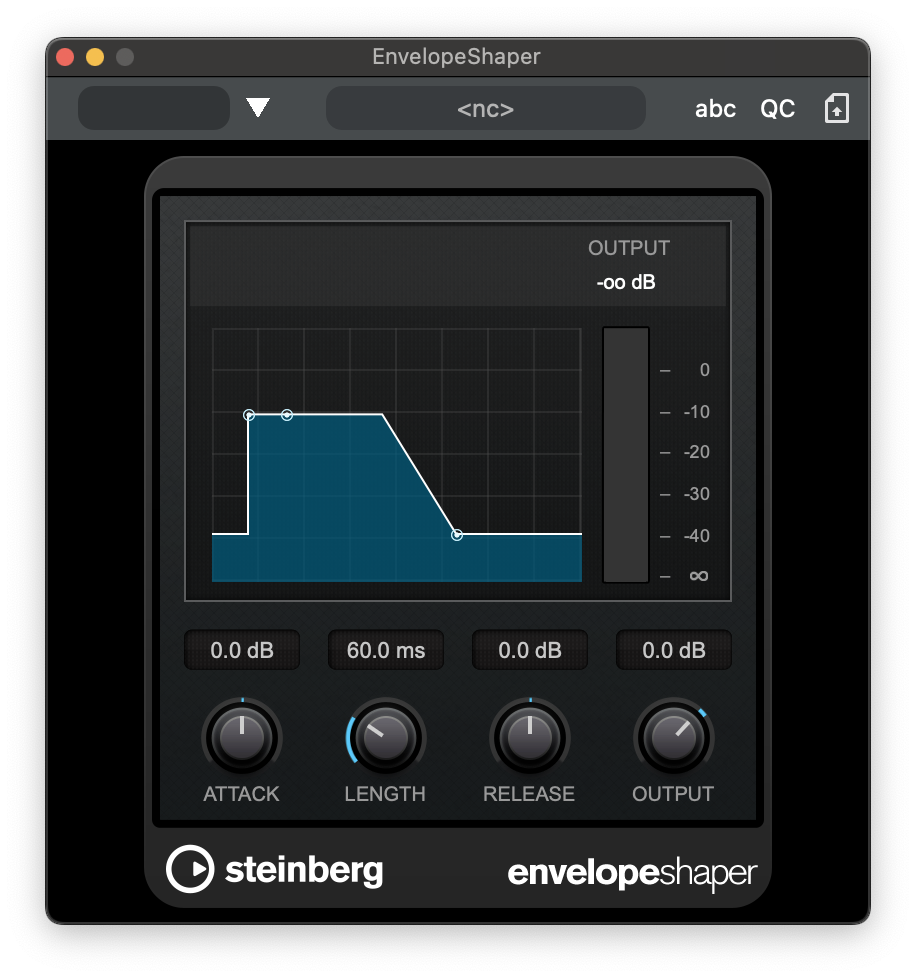
EnvelopeShaper
EnvelopeShaper can be used to attenuate or boost the gain of the attack and release phase of audio material.
Flanger
This is a classic flanger effect with added stereo enhancement.

Gate
Gating, or noise gating, silences audio signals below a set threshold. As soon as the signal level exceeds the threshold, the gate opens to let the signal through.

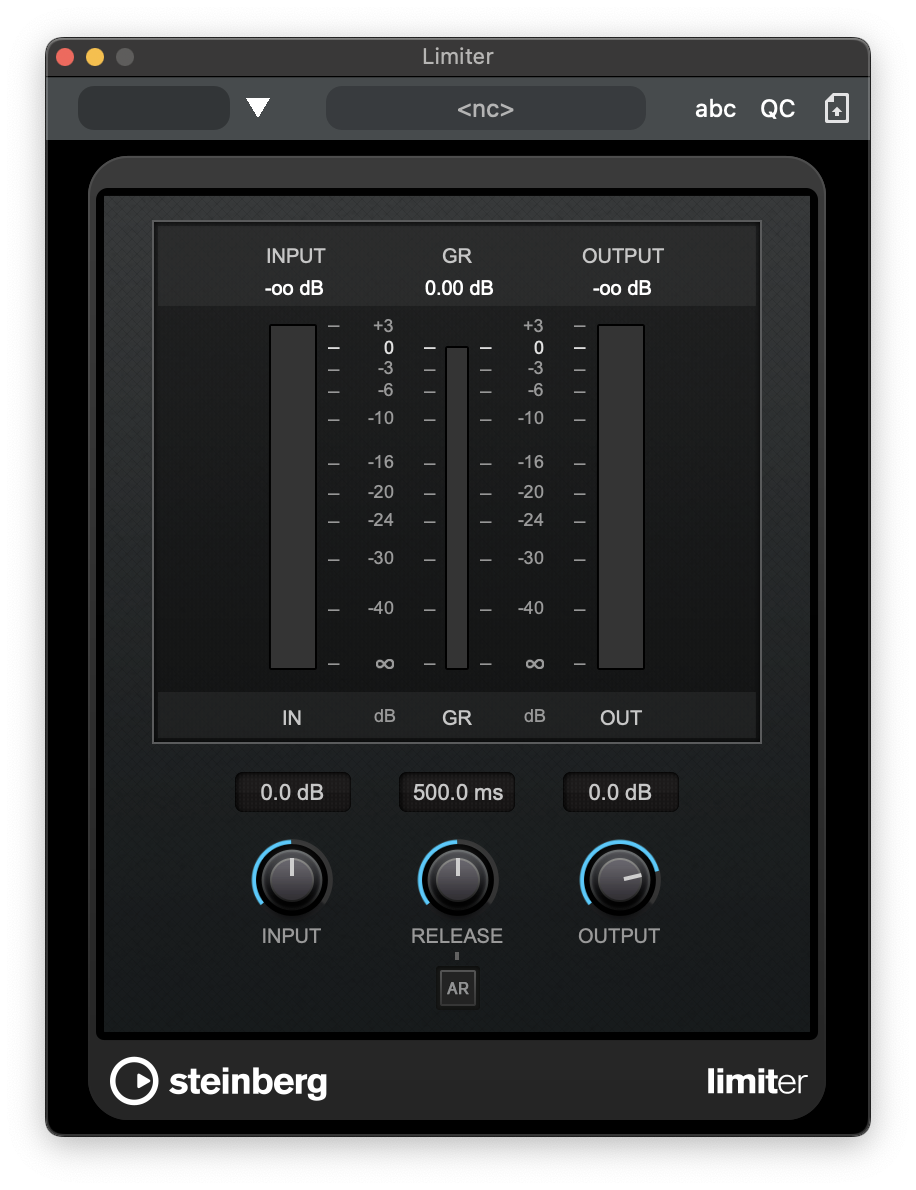
Limiter
Limiter is designed to ensure that the output level never exceeds a set output level, to avoid clipping in following devices.
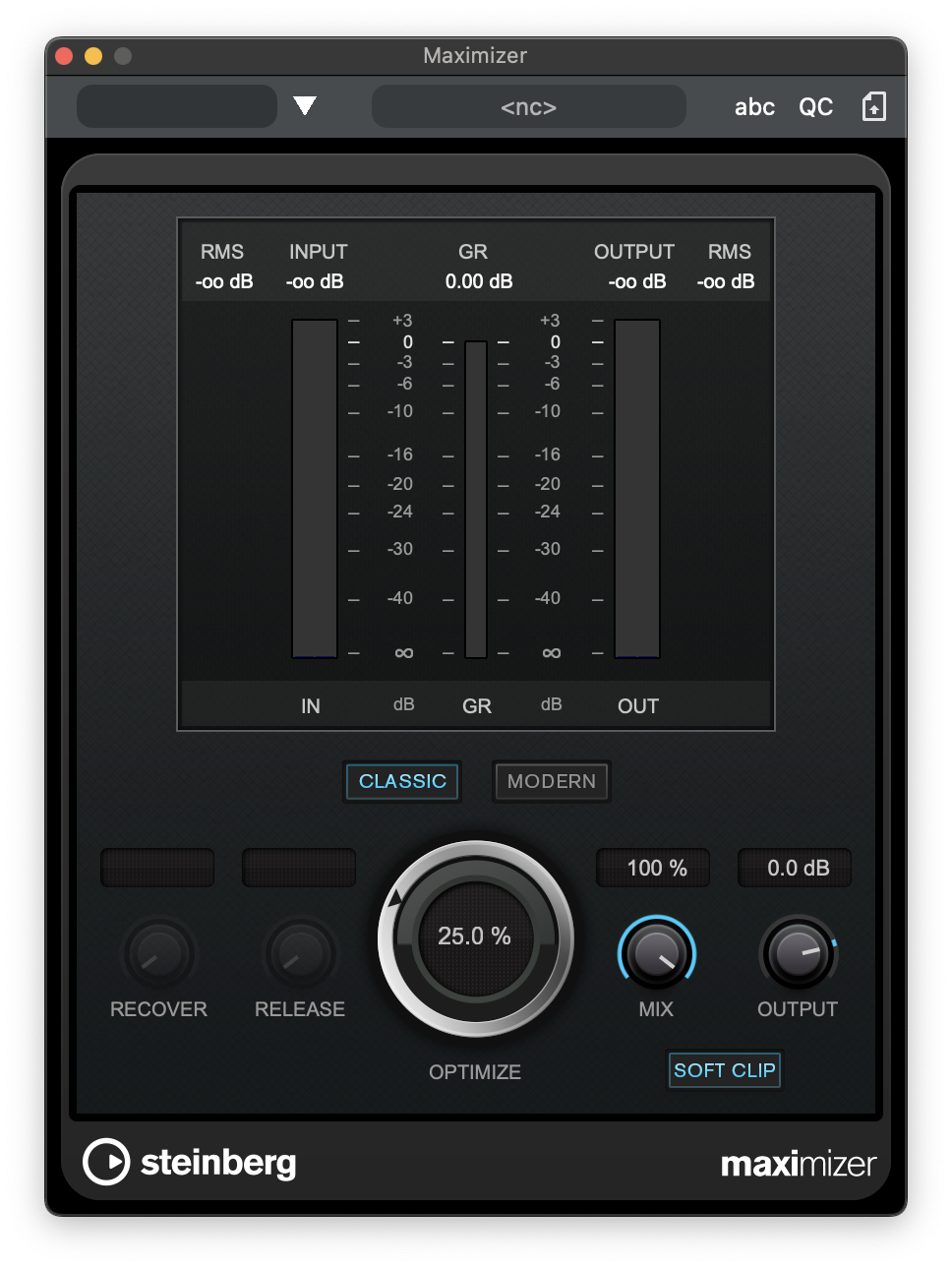
Maximizer
Maximizer raises the loudness of audio material without the risk of clipping. The plug-in provides two modes, Classic and Modern, that offer different algorithms and parameters.
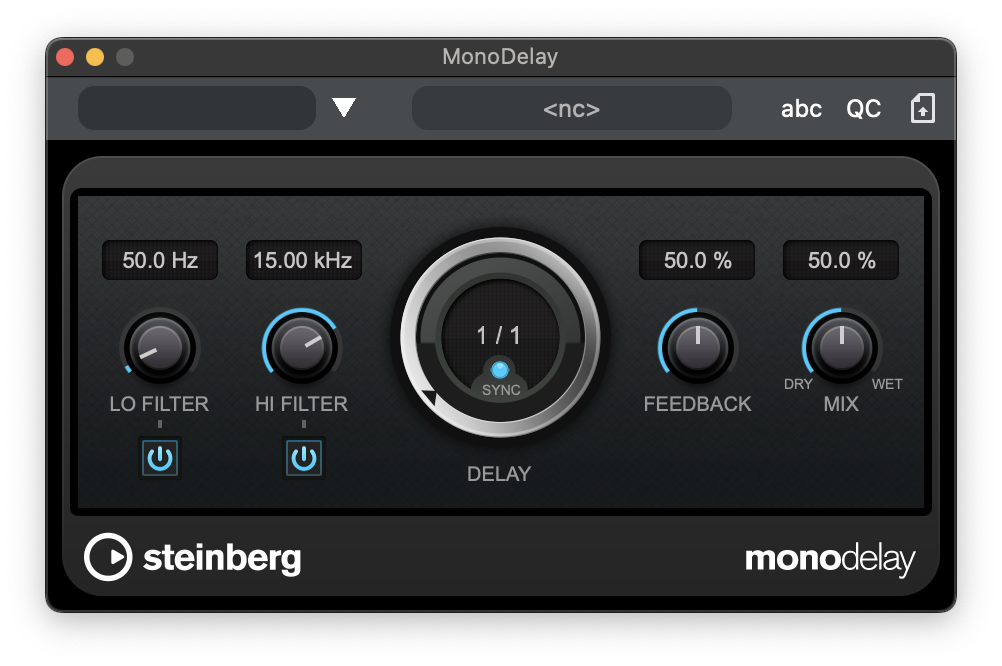
MonoDelay
This is a mono delay effect. The delay line uses tempo-based or freely specified delay time settings.
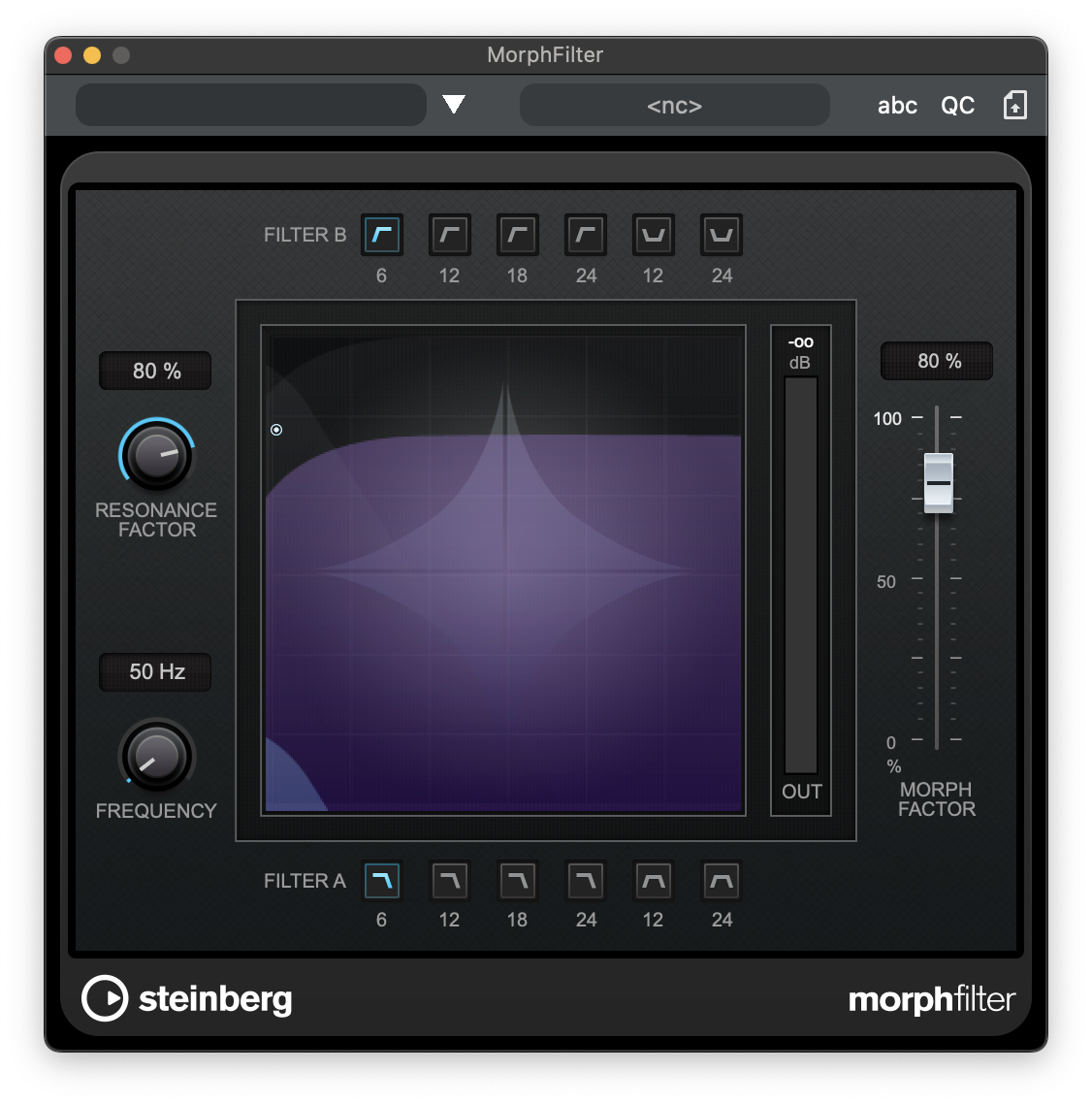
MorphFilter
MorphFilter lets you mix low-pass, high-pass, band-pass, and band-reduction filter effects, allowing for creative morphings or mixtures between two filters.
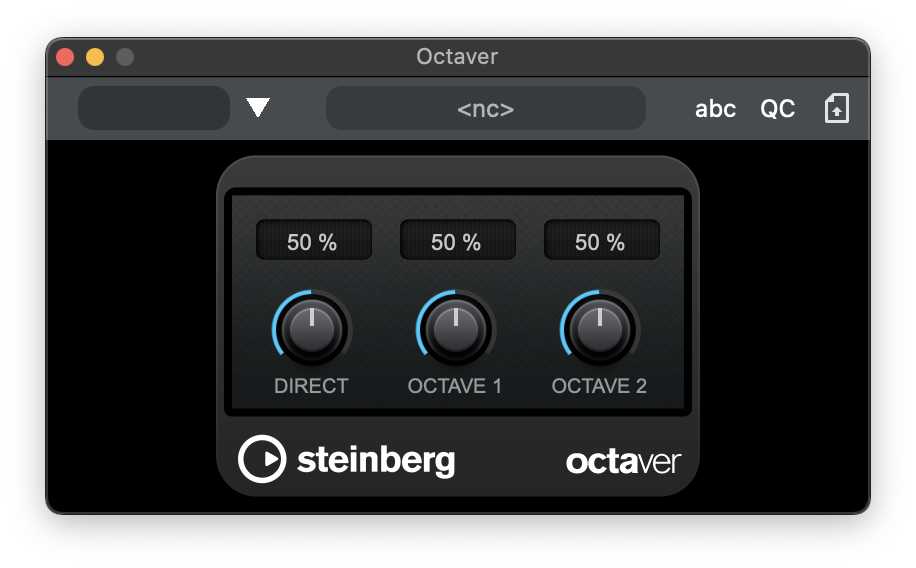
Octaver
This plug-in can generate two additional voices that track the pitch of the input signal one octave and two octaves below the original pitch. Octaver is best used with monophonic signals.
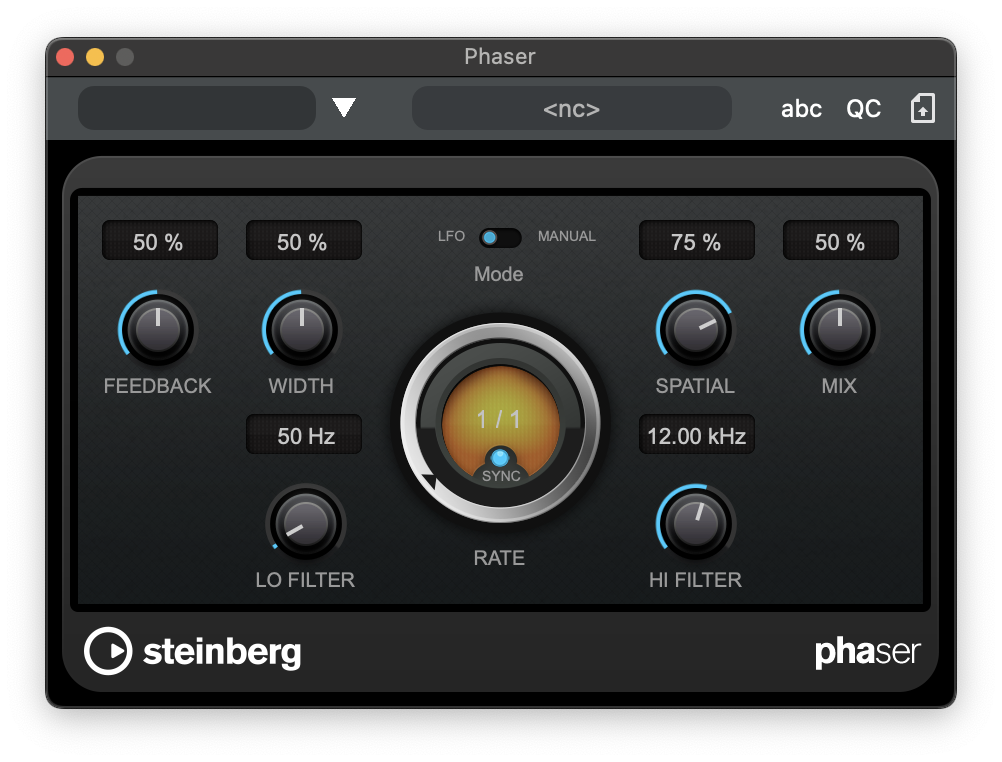
Phaser
Phaser produces the well-known swooshing phasing effect with additional stereo enhancement.
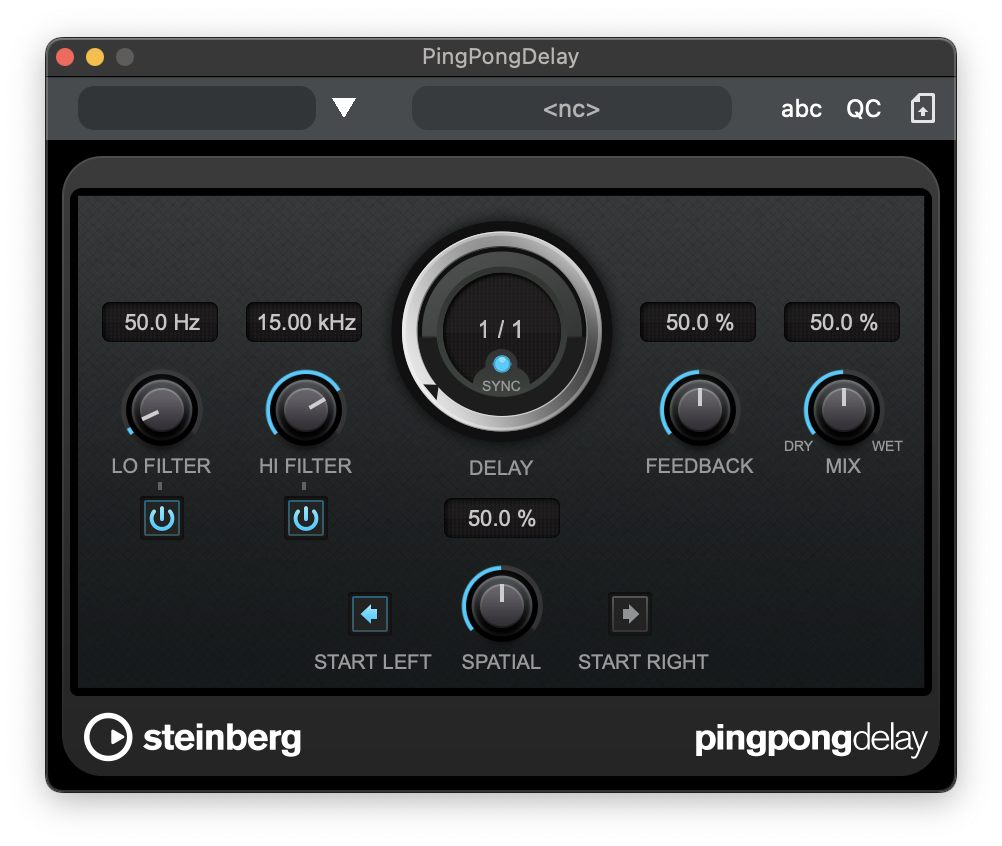
PingPongDelay
This is a stereo delay effect that alternates each delay repeat between the left and right channels. The delay line uses tempo-based or freely specified delay time settings.
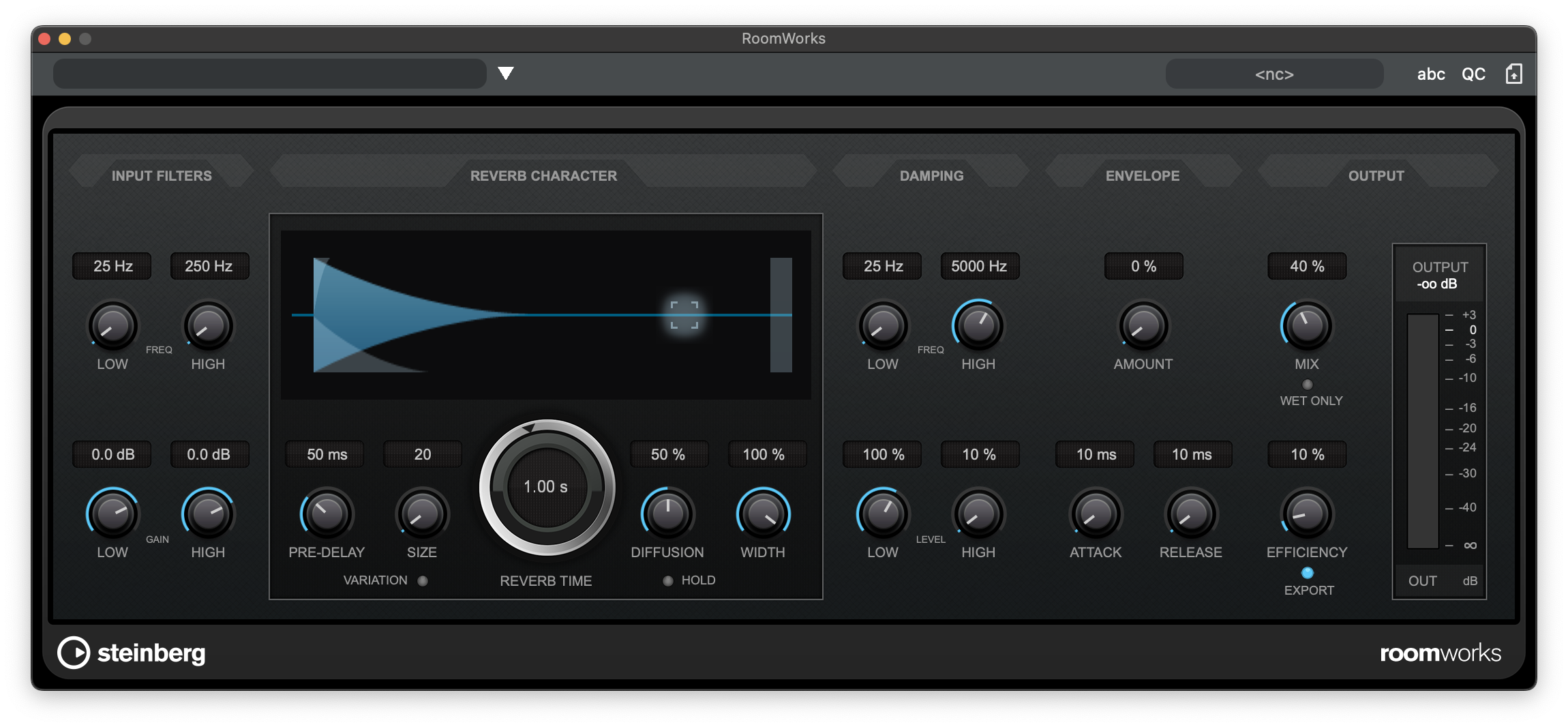
RoomWorks
RoomWorks is a highly adjustable reverb plug-in for creating realistic room ambience and reverb effects in stereo and surround formats. The CPU usage is adjustable to fit the needs of any system. From short room reflections to cavern-sized reverb, this plug-in delivers high quality reverberation.
RoomWorks SE
RoomWorks SE is a smaller version of the RoomWorks plug-in. RoomWorks SE delivers high quality reverberation, but has fewer parameters and is less CPU demanding than the full version.

Rotary
This modulation effect simulates the classic effect of a rotating speaker.

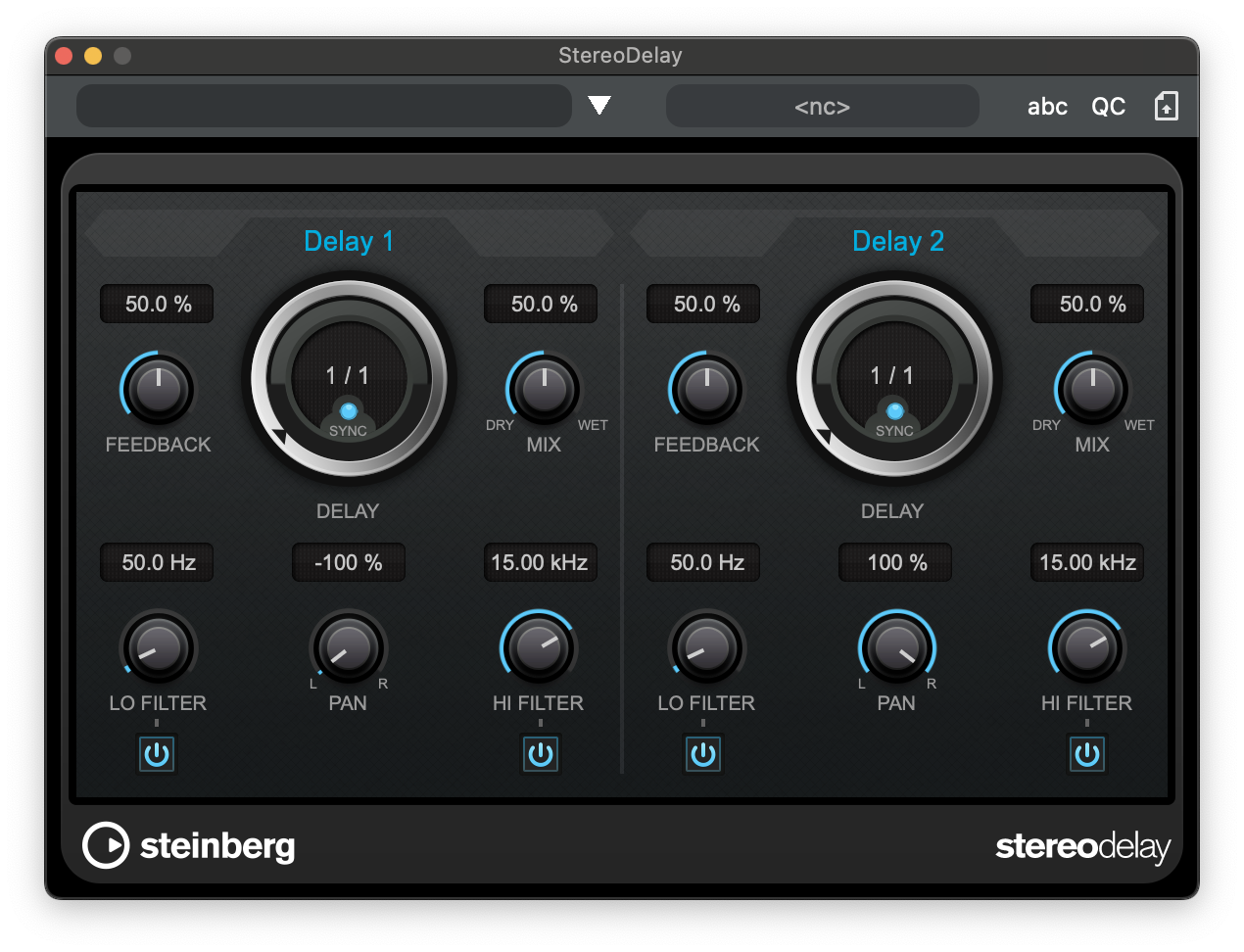
StereoDelay
StereoDelay has two independent delay lines which either use tempo-based or freely specified delay time settings.
StudioEQ
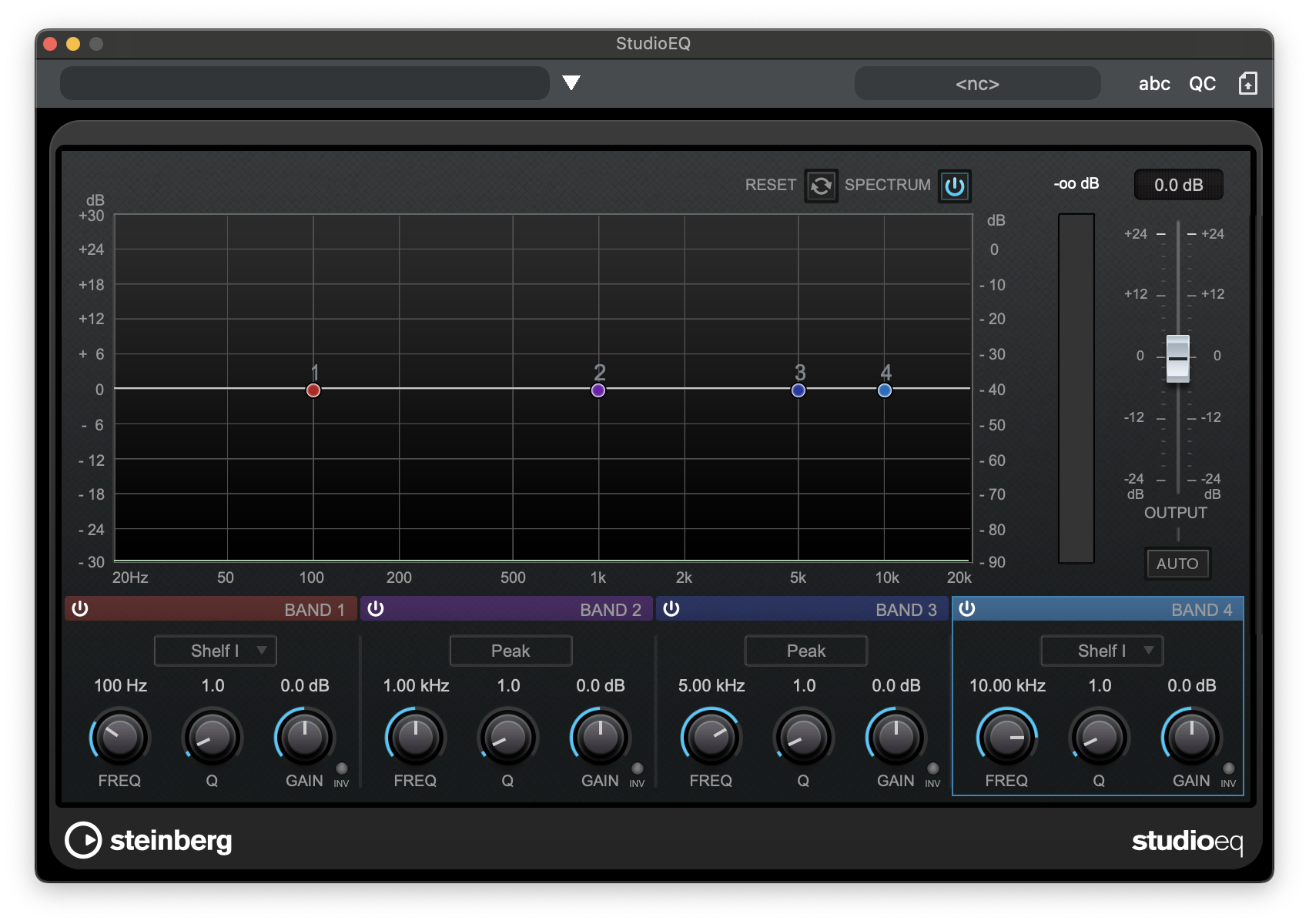
Studio EQ is a high-quality 4-band parametric stereo equalizer. All four bands can act as fully parametric peak filters. In addition, the low and high bands can act as either shelving filters (three types) or as cut filters (low-pass/high-pass).
ToneBooster
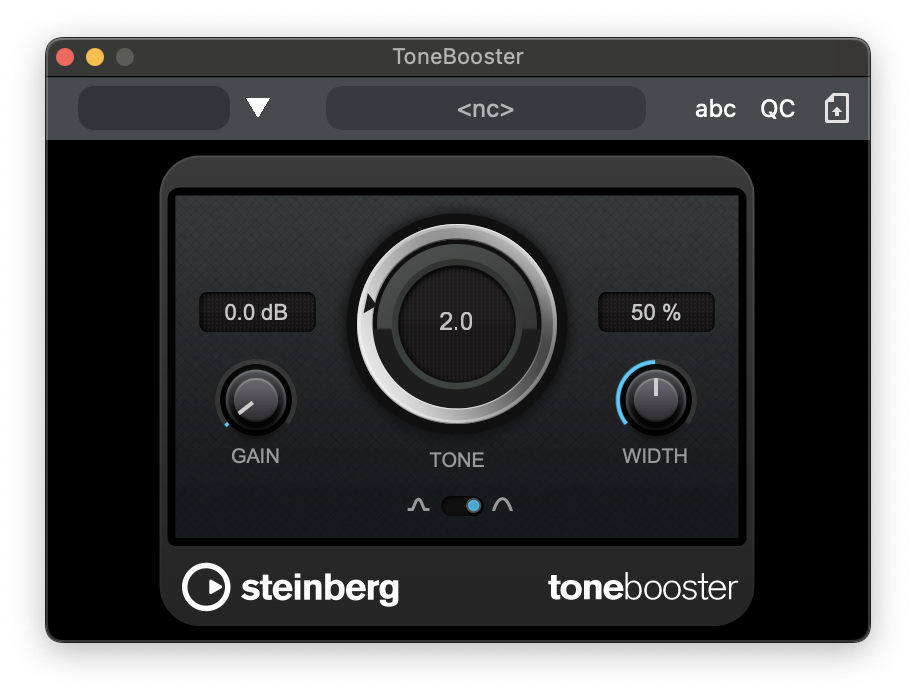
ToneBooster is a filter that allows you to raise the gain in a selected frequency range. It is particularly useful if it is inserted before AmpSimulator in the plug-in chain, greatly enhancing the tonal varieties available.
Tremolo
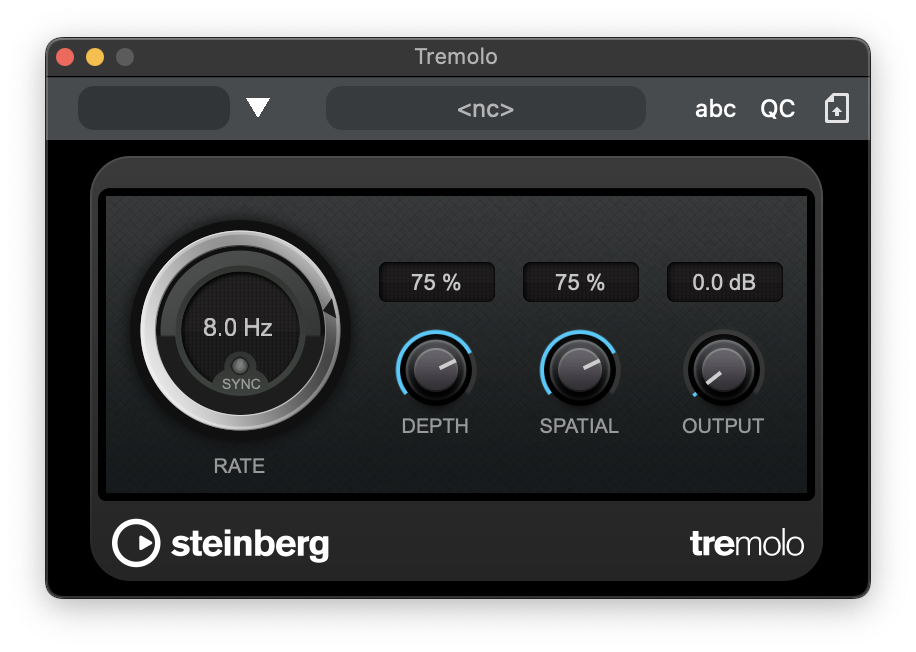
Tremolo produces amplitude modulation.
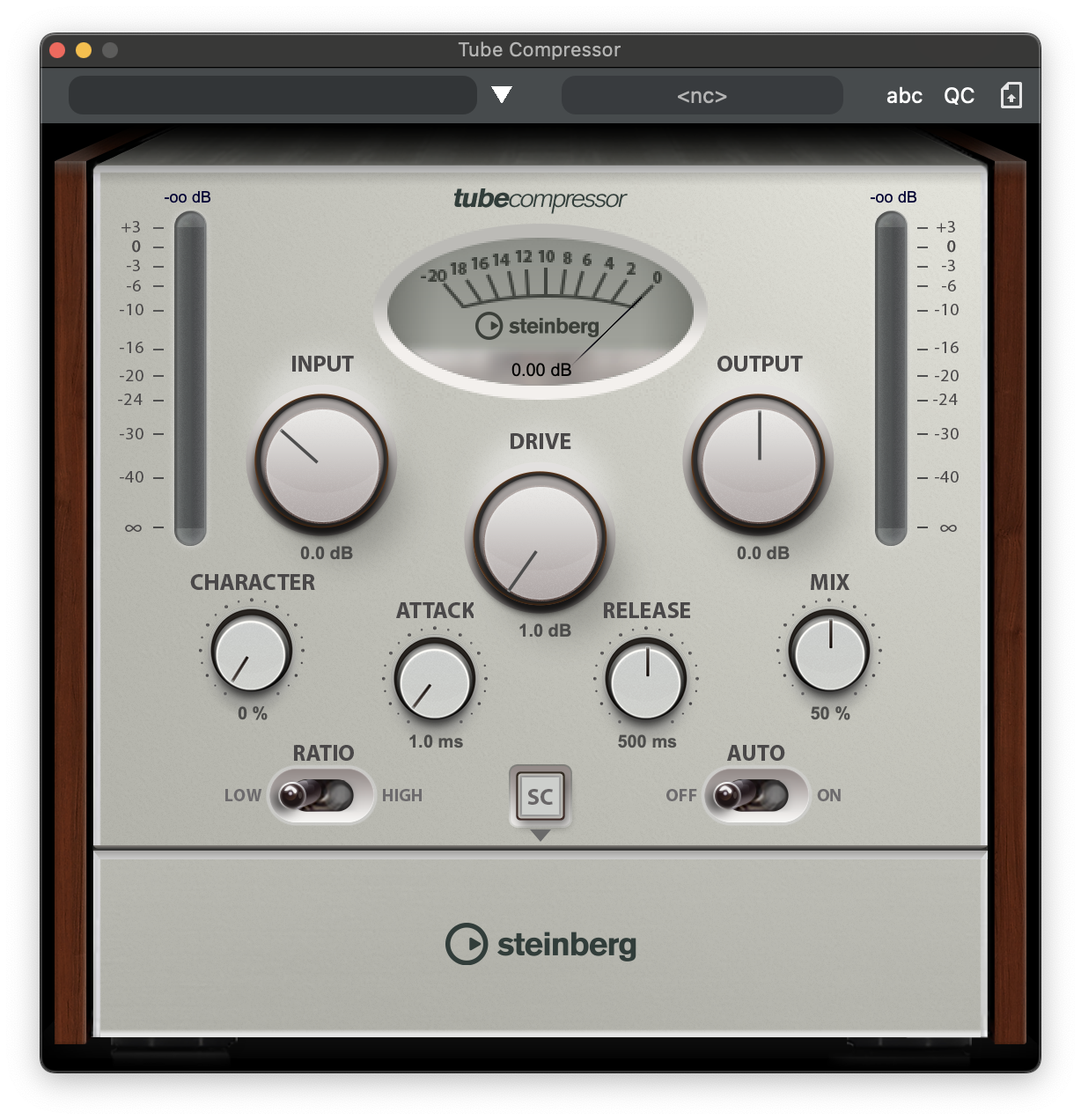
Tube Compressor
This versatile compressor with integrated tube-simulation allows you to achieve smooth and warm compression effects. The VU meter shows the amount of gain reduction. Tube Compressor features an internal side-chain section that lets you filter the trigger signal.
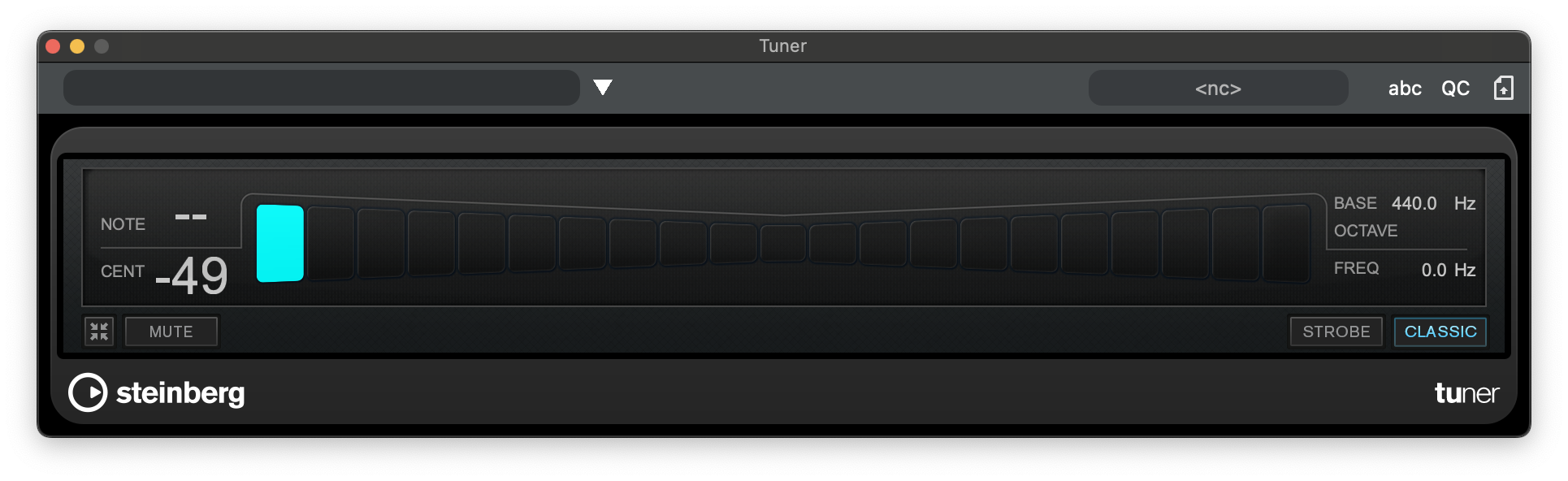
Tuner
This is a guitar tuner.
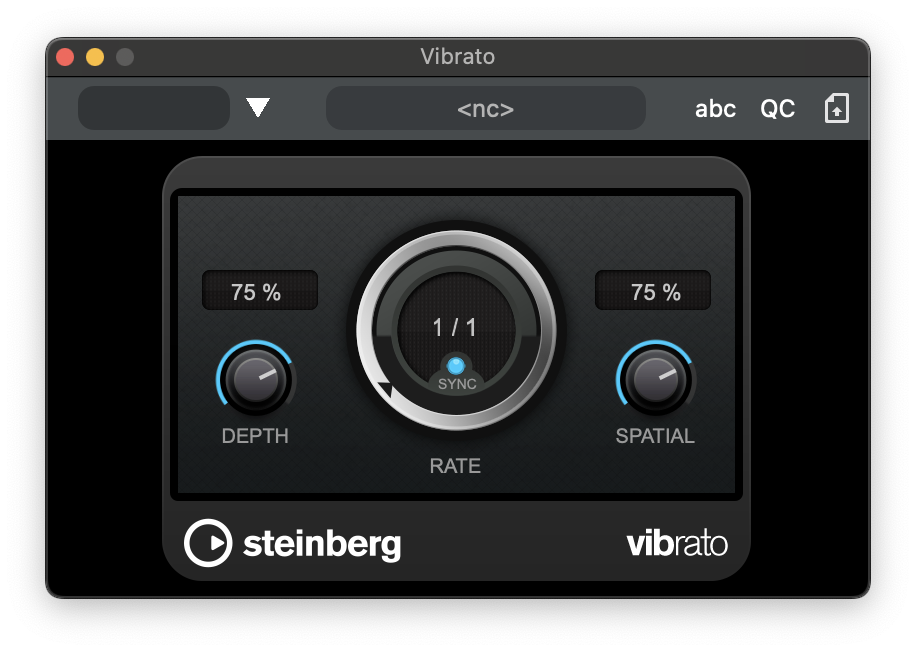
Vibrator
Vibrato creates pitch modulation.
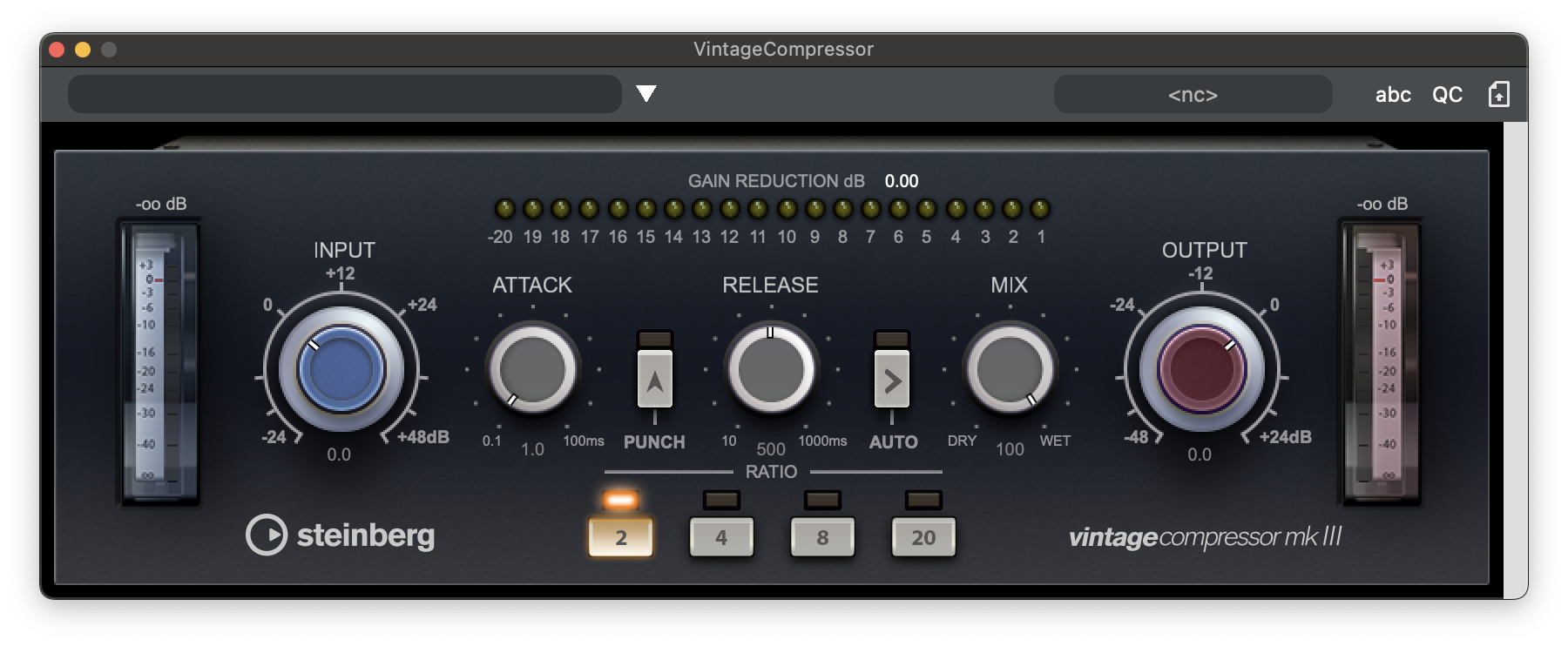
VintageCompressor
VintageCompressor is modeled after vintage type compressors.
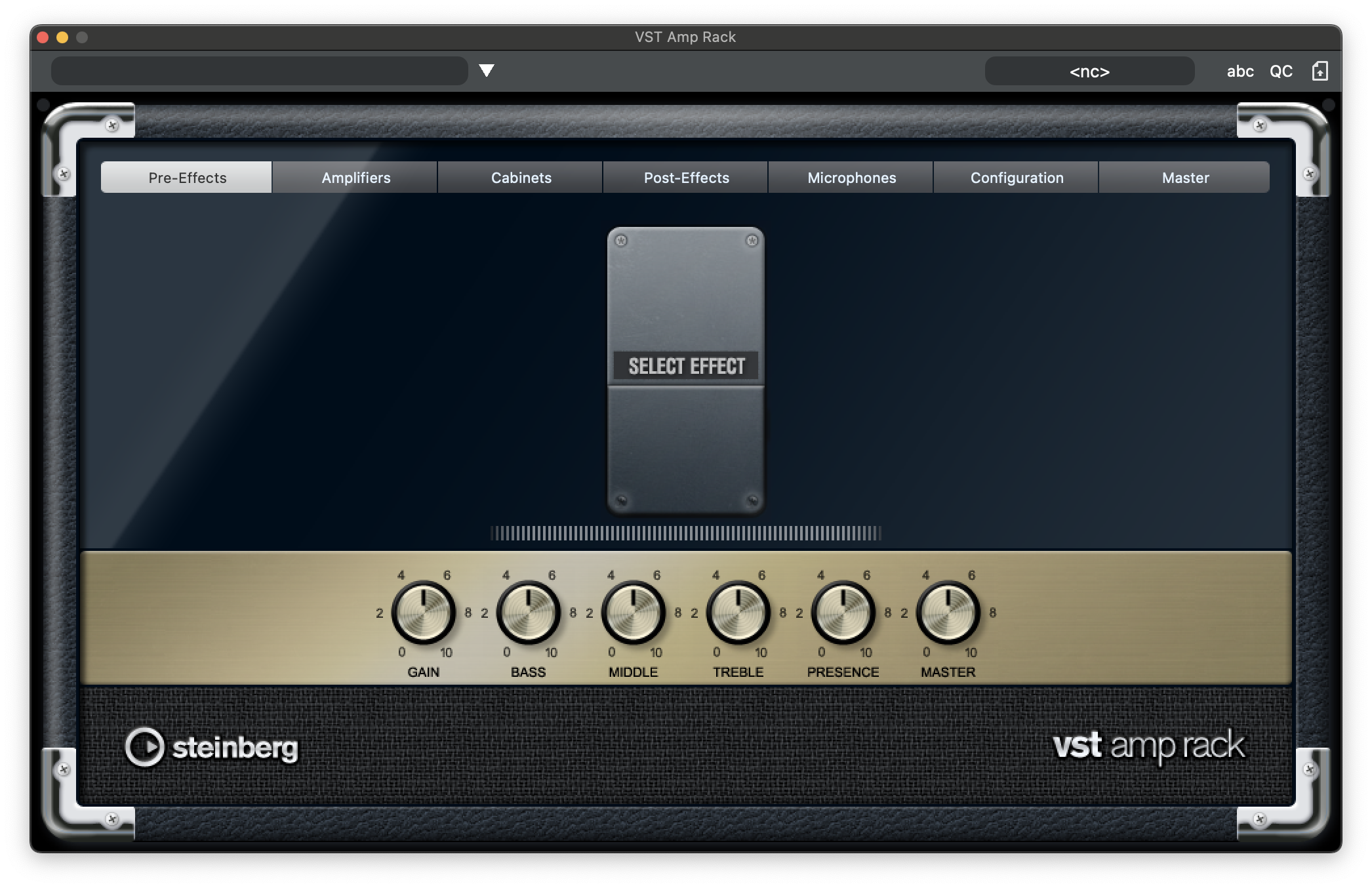
VST Amp Rack
VST Amp Rack is a powerful guitar amp simulator. It offers a choice of amplifiers and speaker cabinets that can be combined with stomp box effects.
VST Bass Amp
VST Bass Amp is a bass amp simulator. It offers a choice of amplifiers and speaker cabinets that can be combined with stomp box effects.

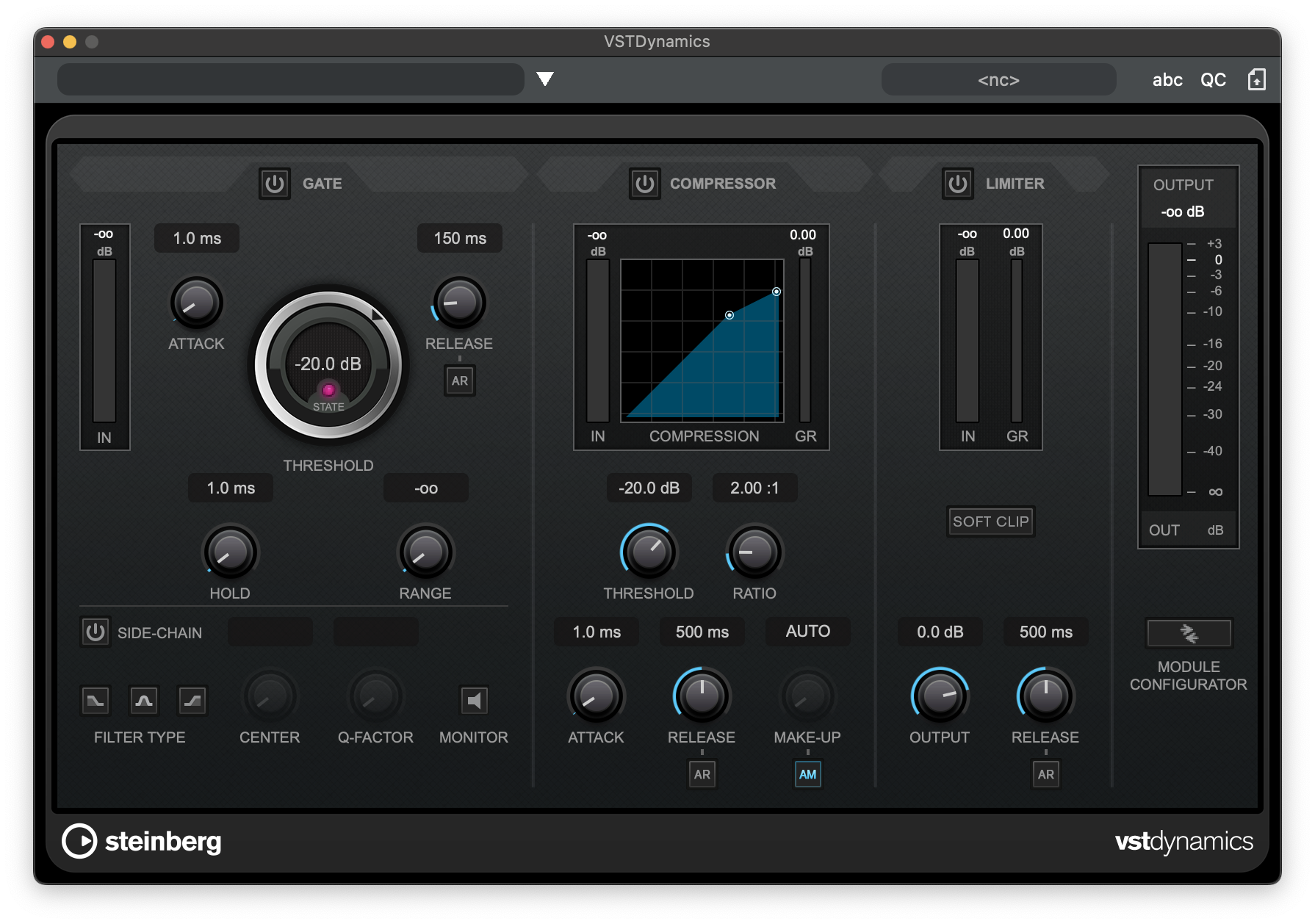
VSTDynamics
VSTDynamics is an advanced dynamics processor. It combines three separate effects: Gate, Compressor, and Limiter, covering a variety of dynamic processing functions.
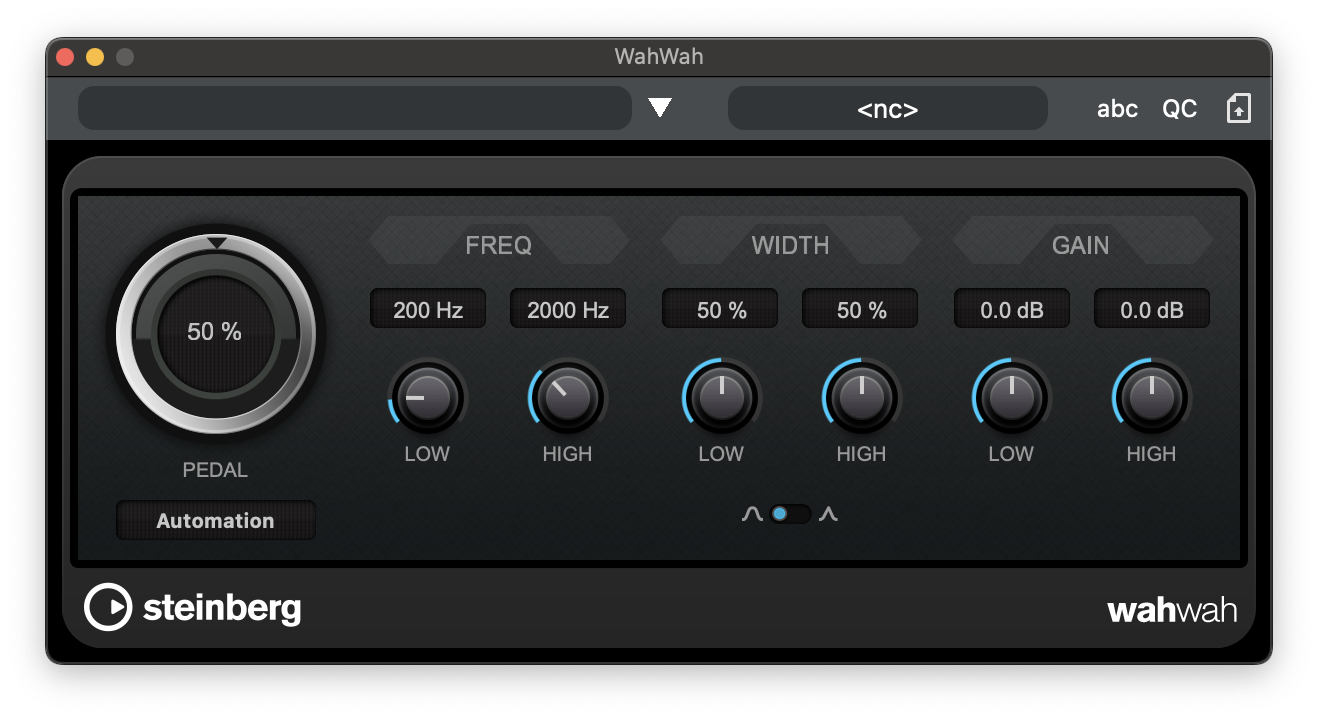
WahWah
WahWah is a variable slope band-pass filter that can be auto-controlled by a side-chain signal or via MIDI modeling the well-known analog pedal effect.
VST3 Instruments🔗
Documentation for these instruments is available online at Steinberg’s website:
VST Live MIDI🔗
VST Live MIDI Effects are non-destructive MIDI processors that can be inserted in MIDI Tracks.
Arpeggiator🔗
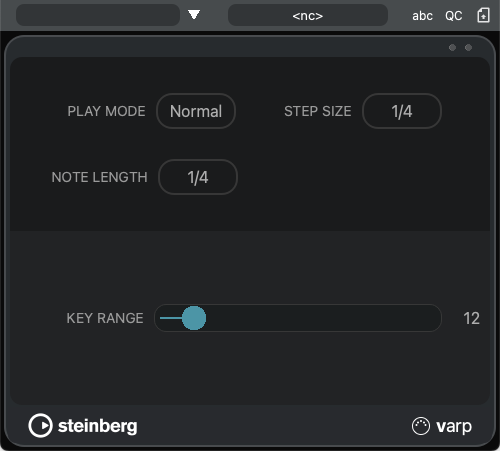
The Arpeggiator transforms held chords into individually sounded bites in a progressive rising or descending order.
Interface
- Play Mode
Specifies the arpeggio pattern. The choices are:
- Normal: Notes are sounded top to bottom, bottom to top, and repeat.
- Inverted: Notes are sounded bottom to top, top to bottom, and repeat.
- Up Only: Notes are sounded bottom to top, and repeat.
- Down Only: Notes are sounded top to bottom, and repeat.
- Up Only: Notes are sounded randomly with each repetition.
- Step Size
The duration of the arpeggio pattern.
- Note Length
The duration of the individual notes in the pattern.
- Key Range
The range (in note numbers) over which the arrpeggio will play.
Designer🔗
The Designer is a powerful step-sequencer for creating patterns.
Organisation
The Designer is organised as a series of four grids, with a single line at the top to show the position of the Designer’s transport. Each box represents a fixed unit of time.
- Adding a Note: Click in a box, turning it to cyan.
- Deleting a Note: Click in the same box, resetting it to black.
- Choosing the Note: The MIDI note played is shown in the left-hand column.
Interface
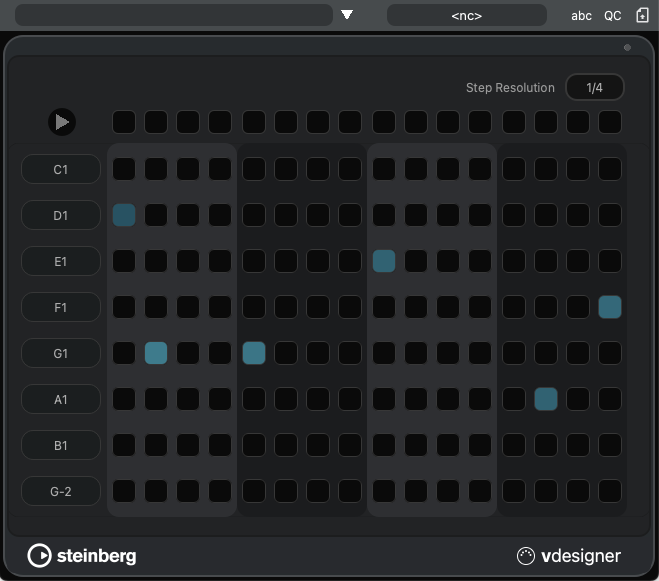
- Transport Toggle
Starts or stops the Designer’s step-sequencer.
If VST Live’s main transport is not playing, you can still play the Designer’s transport.
- Step Resolution
The duration of the boxes within the Designer’s grid.
Choosing longer durations will increase the duration of the Designer’s grid pattern, respectively.
Echo🔗
Echo produces consecutive delays of a specific MIDI note phrase.
Interface
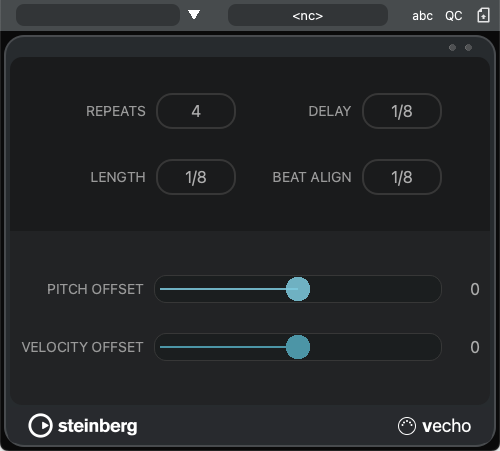
- Repeats
The number of times the phrase will be repeated.
- Delay
The time between repetitions of the phrase.
- Length
The duration of the phrase to be repeated.
- Pitch Offset
Changes the MIDI note number (pitch) for each repeatition.
- Negative: The MIDI note number will decrease by this amount.
- Positive: The MIDI note number will increase by this amount.
- Velocity Offset
Changes the MIDI Velocity of each note for each repeatition.
- Negative: The Velocity is decreased by this amount.
- Positive: The Velocity is increased by this amount.
Pulse🔗
Pulse repeats the same note indefinitely.
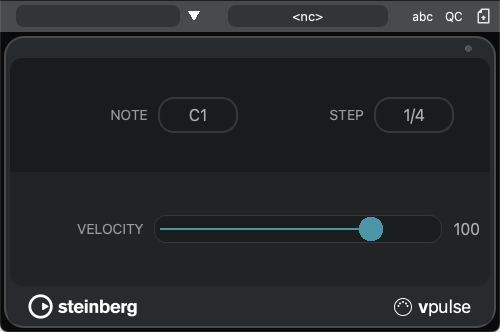
Interface
- Note
The MIDI note number that is repeated.
- Step
The duration between notes.
- Velocity
The MIDI Velocity value for each note.
VST Live DMX🔗
VST Live DMX Effects are used to create automatic lighting patterns for your performance.
Arpeggiator🔗
The Arpeggiator transforms held chords into individually sounded bites in a progressive rising or descending order.
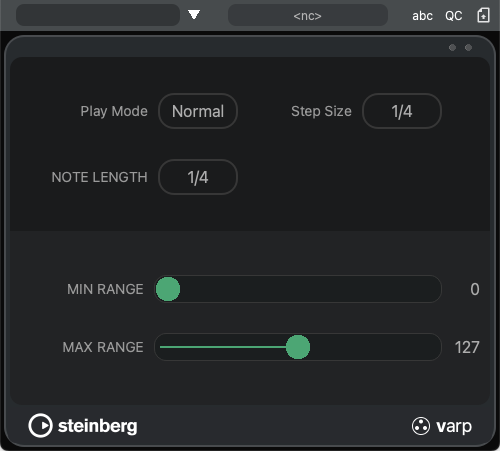
Interface
- Play Mode
Specifies the arpeggio pattern. The choices are:
- Normal: The pattern moves from higher DMX channels to lower channels, lower to higher, and repeat.
- Inverted: The pattern moves from lower DMX channels to higher channels, higher to lower, and repeat.
- Up Only: DMX channels are activated from lower to higher, repeat.
- Down Only: DMX channels are activated from higher to lower, repeat.
- Up Only: DMX channels are activated randomly with each repetition.
- Step Size
The duration of the channel activations in the pattern.
- Note Length
The duration of the each (individual) activation in the pattern.
- Min Range
The lowest DMX channel number that the arpeggio will fall to.
- Max Range
The highest DMX channel number that the arpeggio will rise to.
Designer🔗
The Designer is a powerful step-sequencer for creating lighting patterns.
OrganisationThe Designer is organised as a series of four grids, with a single line at the top to show the position of the Designer’s transport. Each box represents a fixed unit of time.
- Adding an Activation: Click in a box, turning it to green.
- Deleting an Activation: Click in the same box, resetting it to black.
- Choosing the DMX Channel: The channel is shown in the left-hand column.
Interface
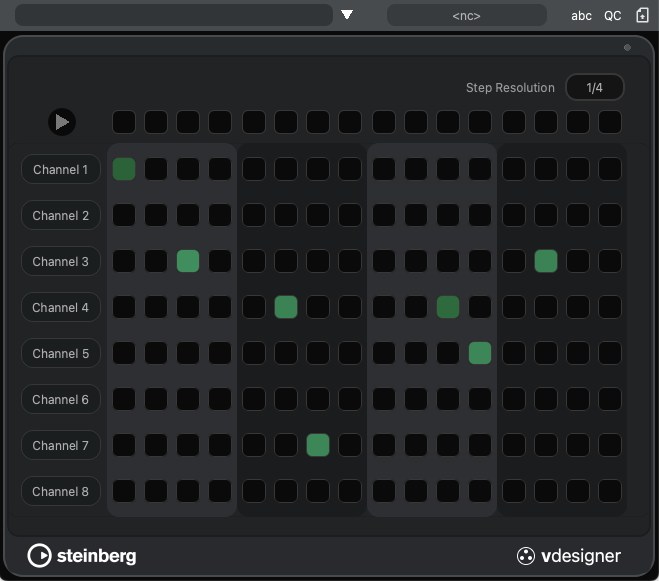
- Transport Toggle
Starts or stops the Designer’s step-sequencer.
If VST Live’s main transport is not playing, you can still play the Designer’s transport.
- Step Resolution
The duration of the boxes within the Designer’s grid.
Choosing longer durations will increase the duration of the Designer’s grid pattern, respectively.
Echo🔗
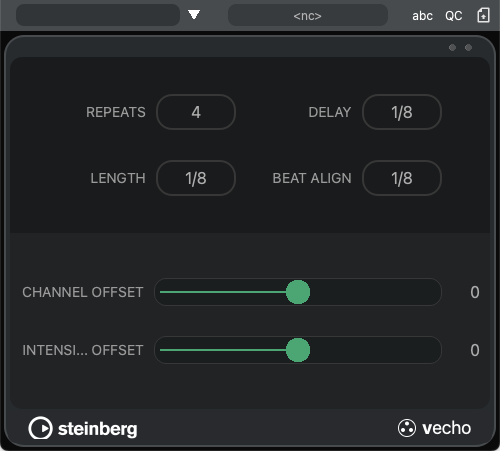
Echo produces consecutive reptitions of a specific DMX activation pattern.
Interface
- Repeats
The number of times the pattern will be repeated.
- Delay
The time between repetitions of the pattern.
- Length
The duration of the pattern to be repeated.
- Channel Offset
Changes the DMX channel number for each repeatition.
- Negative: The channel number will decrease by this amount.
Positive: The channel number will increase by this amount.
- Intensity Offset
Changes the intensity of each iteration of the pattern.
- Negative: The intensity is decreased by this amount.
- Positive: The intensity is increased by this amount.
Pulse🔗
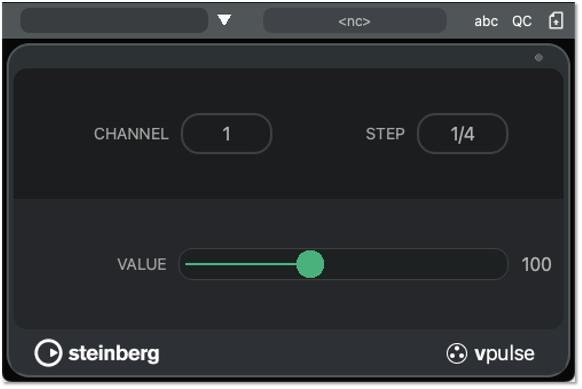
Pulse activates (pulses) the same DMX channel indefinitely.
Interface
- Channel
The DMX channel that will be activated.
- Step
The duration between activations.
- Value
The intensity of each activation.