Mobile Application🔗
VST Live’s mobile application extends the desktop version to you as a performer, your bandmates, and your audience.
Connectivity🔗
The desktop VST Live client can connect to mobile devices on the same WIFI network. To connect a mobile device:
- Ensure the desktop version of VST Live is running on a computer connected to a WiFi network.
- On the mobile device, launch the VST Live mobile app.
- Connect the mobile device to the same WiFi network as the desktop version.
- Click “Connect” on the mobile app. (No configuration is necessary.)
Cueing 🔗
You, your band members, and your crew can use individual mobile devices to receive cues from the desktop application.
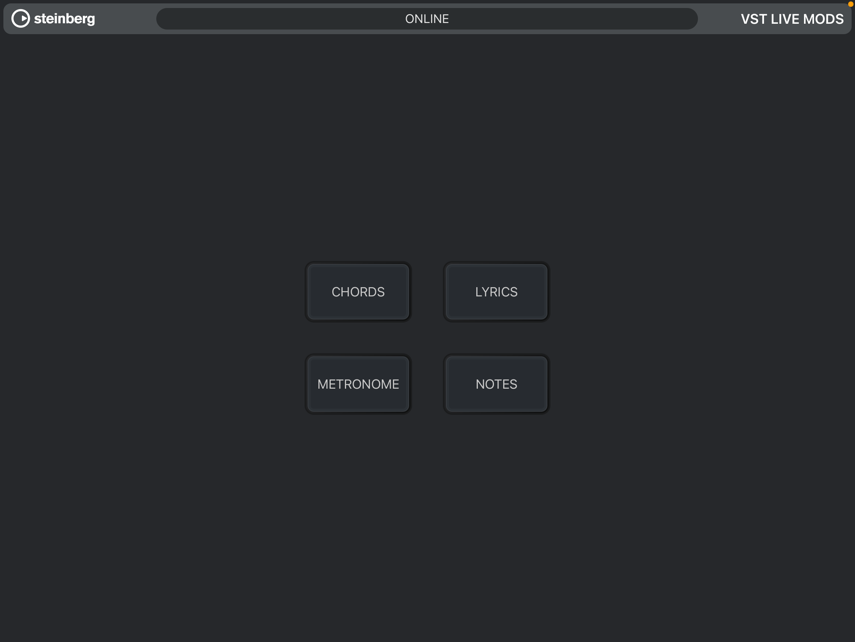
The live app presents four cueing systems, selectable with one of four associated buttons.
Lyrics 🔗
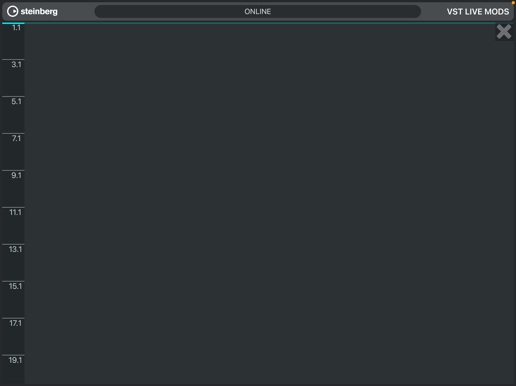
The lyrics to songs can be displayed in real-time (synchronized with the Song).
Chords 🔗
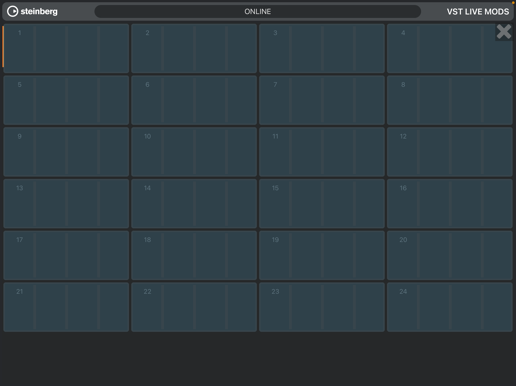
The chords to songs can be likewise in real-time (synchronized with the Song).
Metronome 🔗
The Metronome supplies a timing cue during your performance in real-time (synchronized with the Song).

Notes🔗
If Notes have been entered for a Song in VST Live, they will be synchronized here as on the Notes screen in the desktop VST Live.
Synchronization🔗
You can synchronize events for the mobile application at three levels of automation:
Manually 🔗
You issue MIDI commands at key points during the song, manually driving specific Events on a Song’s Timeline. VST Live’s Transport is not engaged.
Semi-Automated 🔗
You use VST Live’s tap-tempo functionality to drive VST Live’s Transport. The execution of events themselves is automatic, based on the scheduling of the corresponding Events on VST Live Tracks.
Fully-Automated 🔗
Song tempos are preset, and the band plays to a click track (audio and/or visual). All Events execute automatically based on their position on the Timeline.